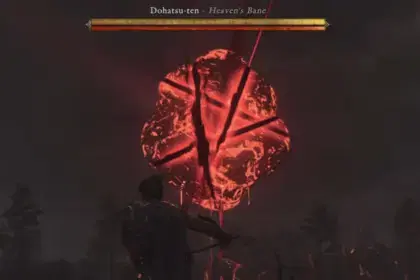

You can lock onto enemies in Mortal Shell 2 to keep your attacks centered and avoid blind swings during fast-paced encounters. The game provides automatic tracking by default, but getting the hang of manual lock-on inputs and adjusting your camera settings stops you from missing strikes when a bunch of enemies crowd you. Our Mortal Shell 2 guide explains how to lock enemies and the settings you ought to use to do it right.
How to Lock Onto Enemies in Mortal Shell 2

To lock on a target manually, press one of these specific keys based on your platform:
- PlayStation 5: Right Analog Stick (R3)
- Xbox: Right Analog Stick (RS)
- PC: Q key or Middle Mouse Button
Pressing the same input again will cancel the target lock. To switch between multiple enemies, flick the Right Analog Stick (R3 / RS) on console or move your mouse toward the next target on PC.
Mortal Shell 2 has an Auto Lock-On feature enabled by default. Keeping this option active prevents missed melee swings during hectic group fights, though you can disable it in the Game Settings menu if you prefer unrestricted manual camera control. You’re better off keeping it enabled for general melee encounters. If Auto Lock-On is disabled, your directional attacks will become free-form, and that means your light and heavy swings are completely going to miss whenever enemies dodge or move around.


Sidearm Lock-On and Free Aim

Ranged weapons and sidearms have their own targeting behavior independent of normal close-range battles. By default, you can aim your sidearm to automatically snap the crosshair onto the nearest target without a need for manual lock-on input.
This default snap targeting tracks both enemies and nearby interactive objects like switches and destructible containers. While handy for hidden mechanics, the auto aim transfer can fight against your input in rooms filled with explosive barrels by moving the reticle away from the barrel and onto a grunt.

To fix this, toggle Free Aim in the settings menu:
- Free Aim Disabled (Default): The crosshair will magnetize to the closest enemy or interactable object when you aim down sights.
- Free Aim Enabled: Strip away aim magnetism, giving full control over your reticle. Switch to this mode whenever you need to blast explosive barrels or pick off certain high-priority hazards in mob groups.
For more combat mechanics, boss strategies, or map locations, check out our Mortal Shell 2 guides hub.