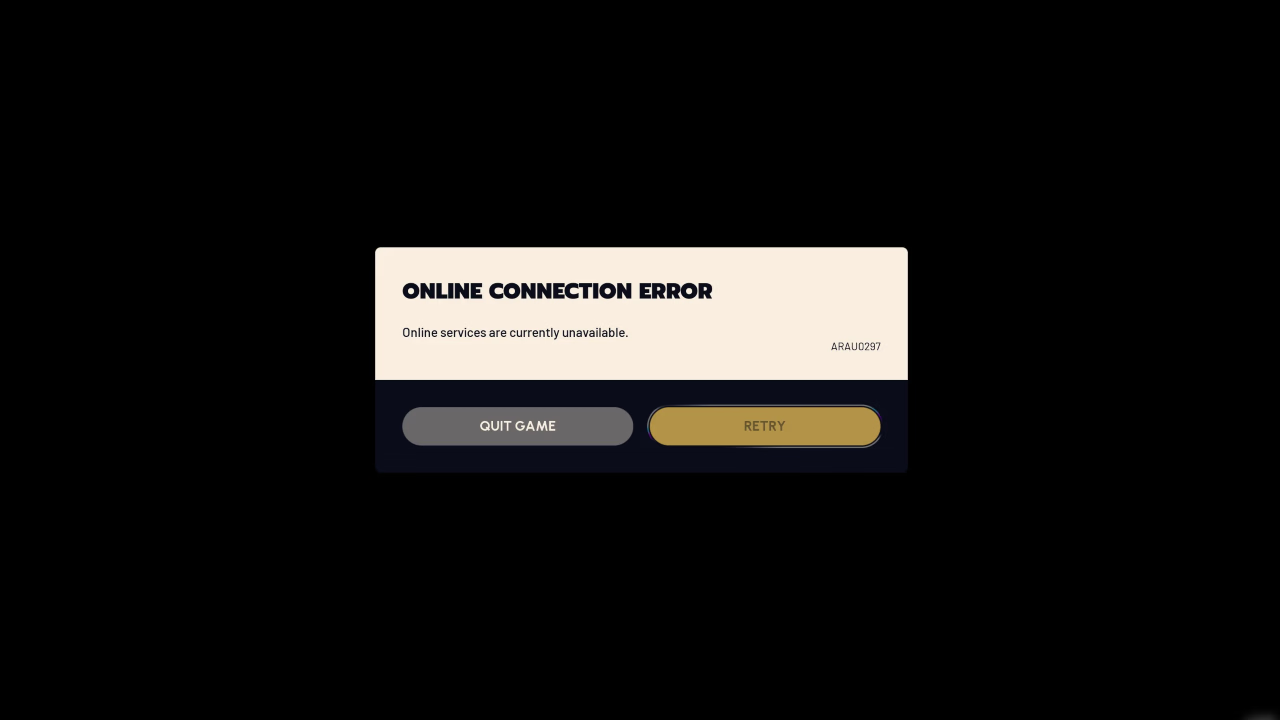
Nothing kills the buzz of dropping into Speranza faster than watching the Easy Anti-Cheat splash screen close only to get slapped with “Connection to online services failed” or “Online services are currently unavailable” in ARC Raiders with pesky codes like ARAU0297, ARAU0277, or ARRT0003. Your internet works fine, other games launch fine, yet ARC Raiders won’t let you reach the main menu, and because it shares Embark’s backend, The Finals often breaks at the same time.
These ARC Raiders online connection errors come down to one of four culprits: unannounced server outages, a missing client patch, a slight desync on your system clock, or Embark’s authentication servers temporarily flagging your shared IP address. Try the fixes below to solve the connection issues in ARC Raiders and get back topside.
Check Server Status and Force Missing Updates
Before you tweak router settings, verify that game servers are up and running. Check communities, Reddit, or Discord for unexpected outage spikes, mainly after a fresh update or during Steam’s weekly Tuesday maintenance window. Sometimes the only cure is to wait for Embark to clear a login queue or release a server hotfix.
On PC, the ARAU0277 code usually means Steam failed to grab a mandatory background update that locks your outdated client out of authentication:
- Open Windows Task Manager and end the active Steam process, then relaunch Steam to force the download check.
- In the Steam app, click Steam in the top left corner and select Check for Steam Client Updates.

- Right click ARC Raiders in your Library, go to Properties > Installed Files, and click Verify integrity of game files to catch corrupted Easy Anti-Cheat binaries.
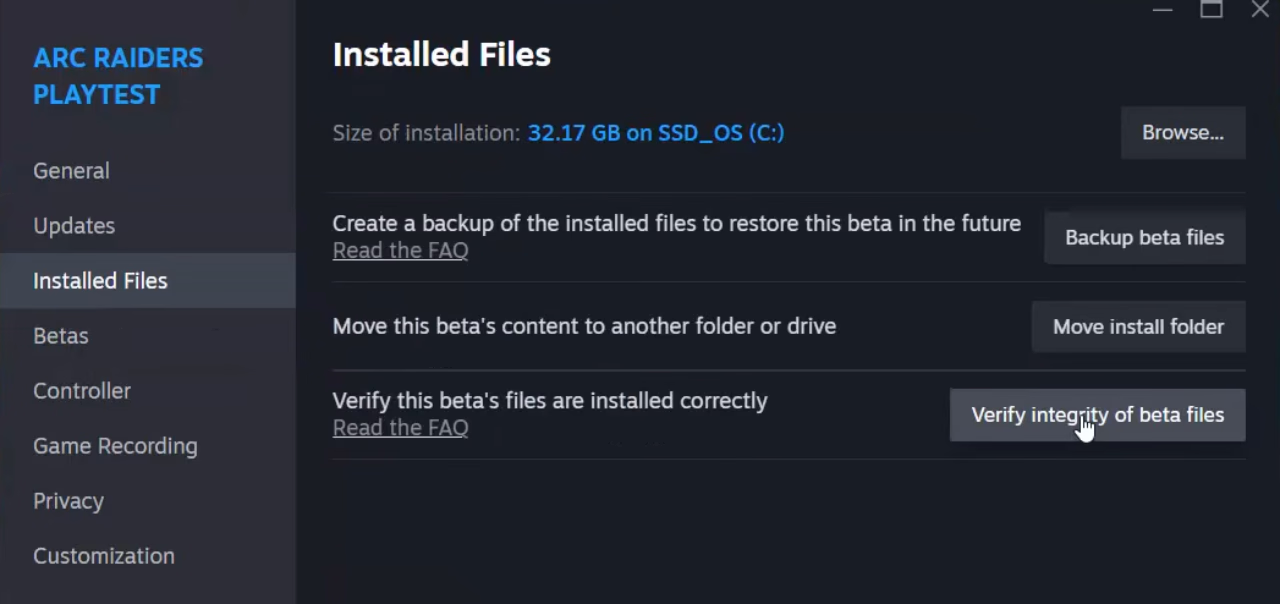
Should verification stalls or fails to clear the error, browse to your steamapps\common\Arc Raiders folder, find start_protected_game.exe and try running it as Administrator. Conversely, players who manually flagged the main executable to “Run as Administrator” should uncheck this box, as mismatched elevation levels between Steam and Easy Anti-Cheat break the login link.
Sync Your System Clock and Time Zone
Embark’s auth tokens are strictly time-sensitive. Even a 20-to-30-second drift between your hardware clock and Embark’s servers—or a mismatched Daylight Saving setting—can cause the security check to reject your login request.
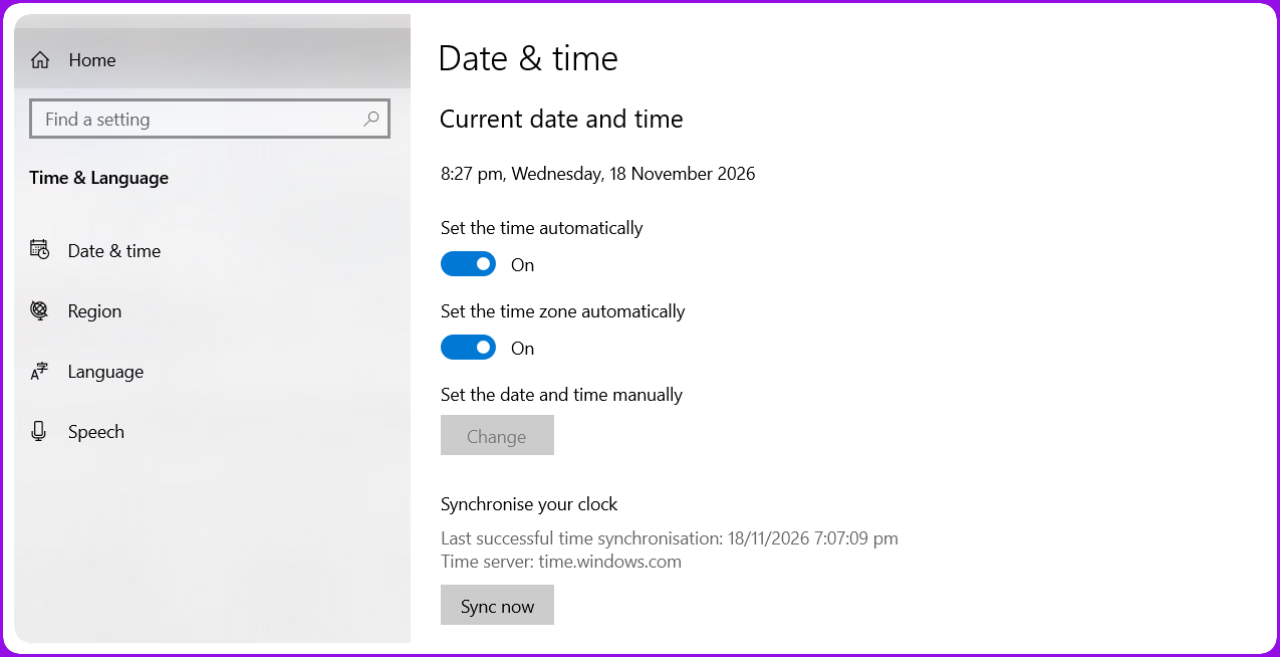
- On Windows PC: Open Settings > Time & Language > Date & Time. Turn on Set time automatically and Set time zone automatically, then click Sync now. If both toggles are already active, turn them off, verify your Windows Region is the same as your country, toggle automatic time back on, and sync again.
- On PlayStation 5: Head to Settings > System > Date and Time > Set Date and Time > Set Using Internet. Turn automatic Daylight Saving Time off and on, and confirm your selected time zone matches your real location.
- On Xbox: Open system time settings, uncheck automatic time/DST if stuck, verify your UTC offset isn’t off by a minute, and confirm your console region aligns with the network.
Flush DNS, Renew Your IP, and Fix CGNAT Blocks
When Embark’s auth service detects suspicious traffic, it issues temporary IP bans that take far too long to expire. This happens to players whose internet providers use Carrier-Grade NAT (CGNAT) disproportionately hard, because so many households share the same public IP from the dev’s perspective—one person triggers a rate limit, and everyone else on that IP faces the problem.
First, unplug the modem and router completely from the wall for at least five minutes. Power cycling forces dynamic ISPs to assign your network a fresh public IP, which instantly bypasses the stale block. Next, flush your local DNS cache and renew your Windows network lease. Open the Start Menu, type cmd, run Command Prompt as Administrator, and enter these three commands in order:
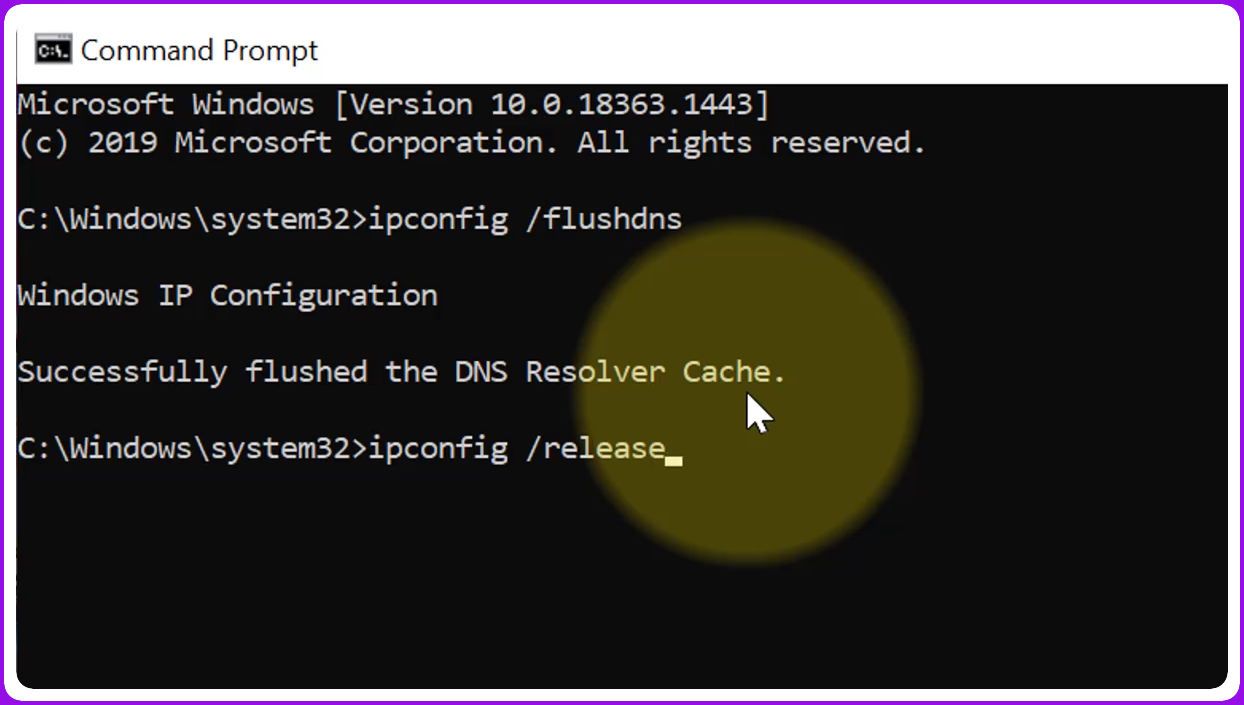
ipconfig /releaseipconfig /renewipconfig /flushdns
Reboot your PC afterward. Linux and Steam Deck desktop users can do the same with sudo resolvectl flush-caches.
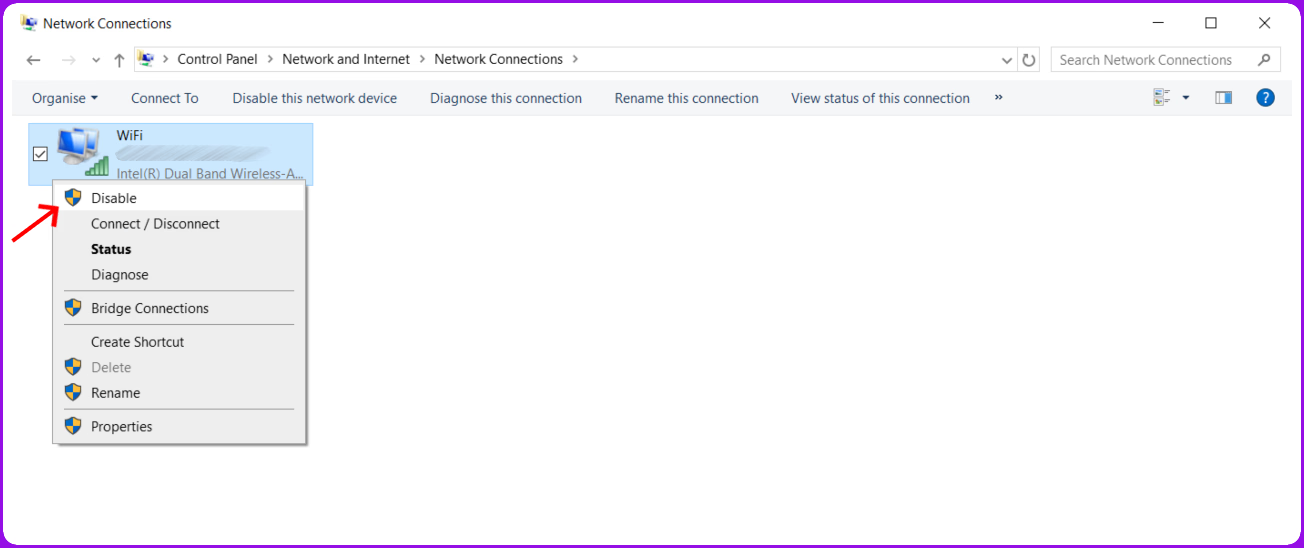
Still getting blocked? Open Control Panel, go to Network and Internet > Network Connections, right click Ethernet or Wi-Fi adapter, disable it, wait 10 seconds, then re-enable it. Windows also has a Network Reset button under Settings > Network & Internet > Advanced network settings that reinstalls your network drivers from scratch.
Switch to Public DNS and Manage VPNs
Default ISP DNS servers often struggle to reach Embark matchmaking nodes. Switching to Cloudflare or Google DNS resolves these routing loops on consoles and PCs.
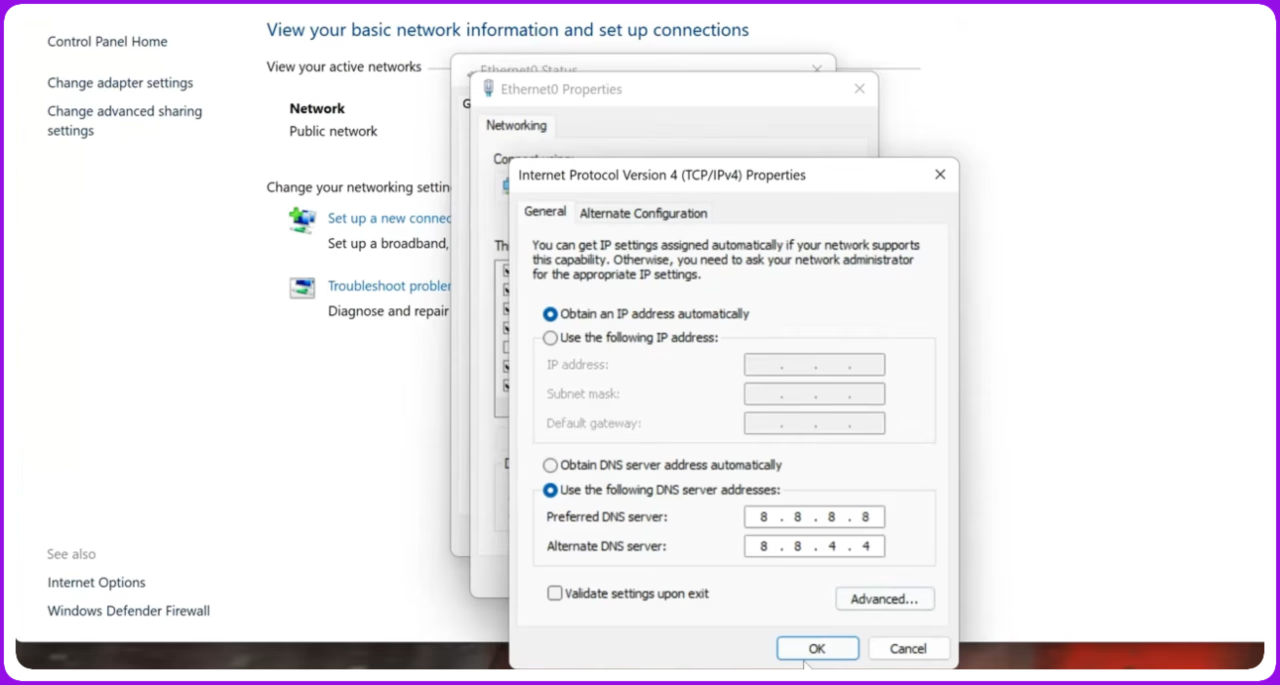
On Windows PC:
- Open Control Panel > Network and Sharing Center and click your active connection.
- Select Properties, highlight Internet Protocol Version 4 (TCP/IPv4), and click Properties.
- Choose Use the following DNS server addresses.

- Enter
8.8.8.8(Preferred) and8.8.4.4(Alternate), or use Cloudflare with1.1.1.1and1.0.0.1.
On PlayStation 5:
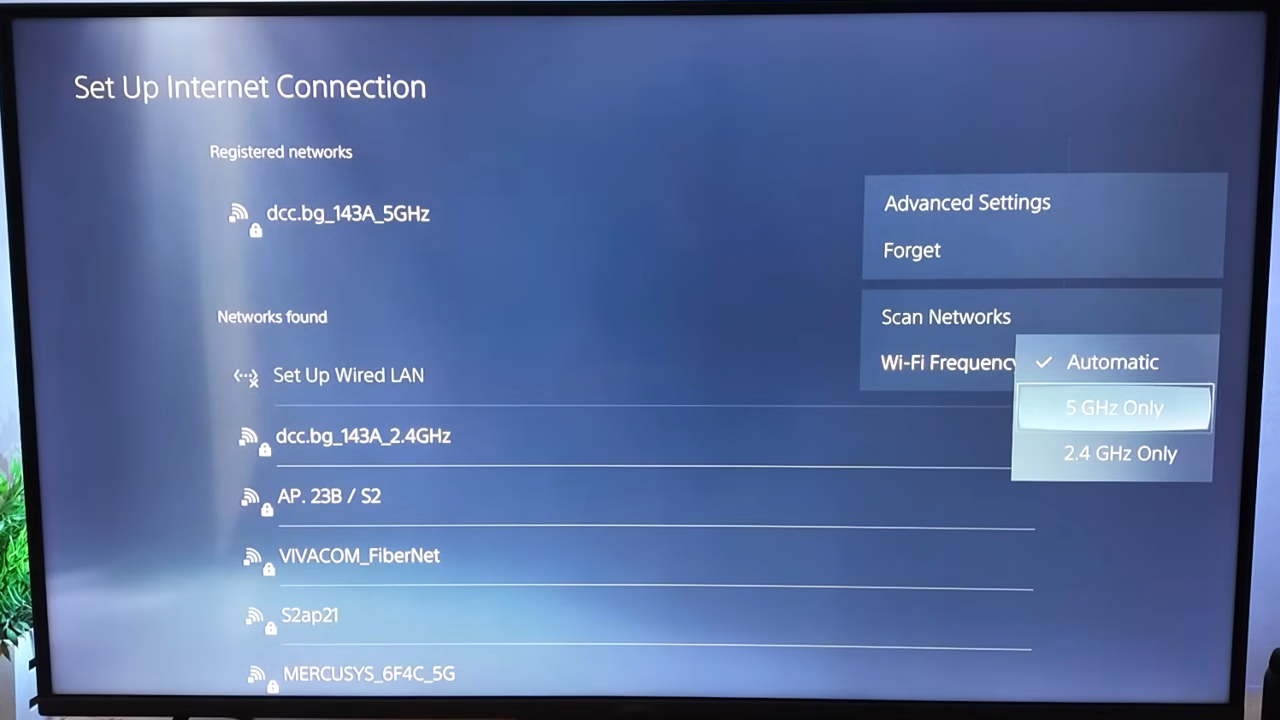
- Go to Settings > Network > Settings > Set Up Internet Connection.

- Press Options on your active connection and switch Wi-Fi Frequency Bands to 5 GHz only (unless wired via Ethernet).
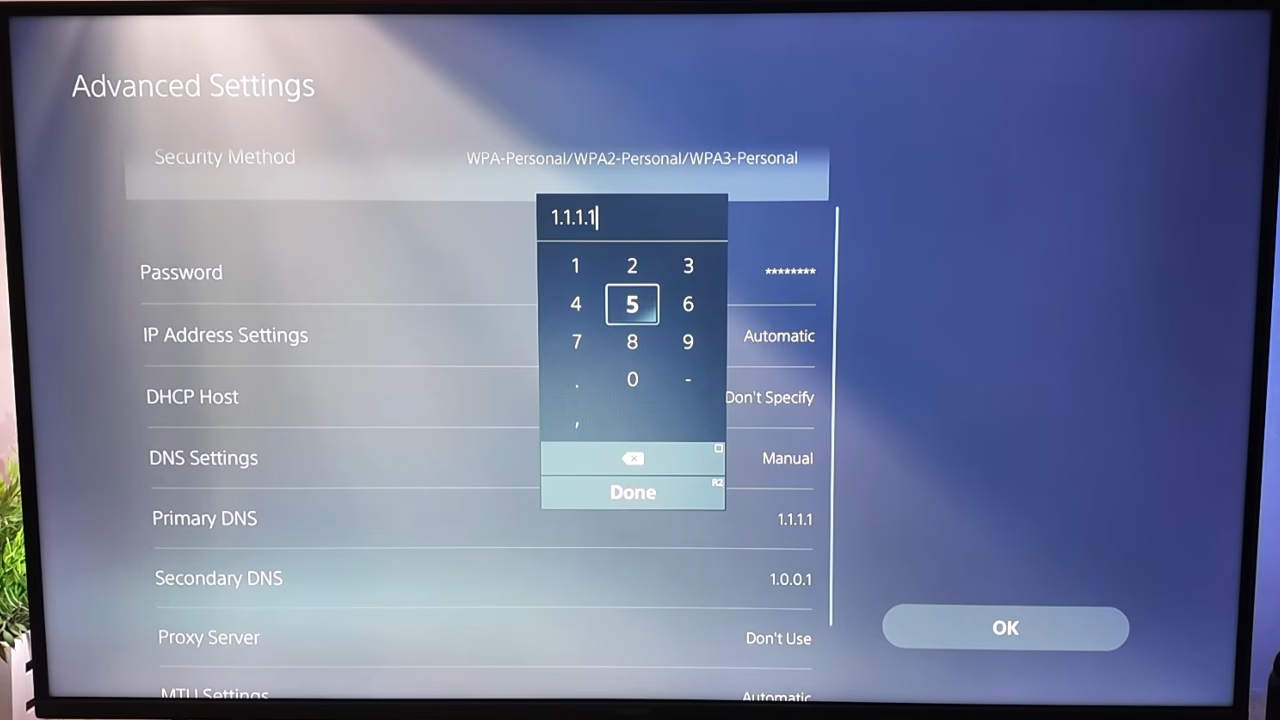
- Open Advanced Settings, switch DNS Settings to Manual, and input
1.1.1.1for Primary and1.0.0.1for Secondary.
Commercial VPNs usually trigger multiplayer rejections, so turn off any active VPN or proxy software before you launch the game. Cloudflare 1.1.1.1 WARP is the main exception. If a stubborn CGNAT ban keeps you out, turning on WARP temporarily routes your traffic around the blocked IP so you can load into a lobby.
Check Account Linking, Console Licenses, and Embark’s Network
New players and cross-progression users frequently get trapped in an endless ARAU loop because their profile never properly registered with the game’s backend. Open a web browser, go to id.embark.games/id/profile, sign in, and manually link your platform account before starting ARC Raiders.
Console and handheld raiders have a few extra platform quirks to clear:
- PlayStation 5: Open Settings > Users and Accounts > Other > Restore Licenses, highlight ARC Raiders, and restore your license. Clearing console cache or rebuilding the database in Safe Mode also unsticks broken patch states.
- Xbox: Check that your Game Pass / multiplayer subscription didn’t lapse. Being stuck on
ARAU0297you can also force a proper account connection simply by launching the game via Xbox Cloud Gaming for a few minutes before the local install. - Handhelds (Steam Deck / ROG Ally X): Boot directly from Desktop Mode to avoid occasional Easy Anti-Cheat hang-ups that occur in console-style overlay modes.
Finally, clean up the basic link stability settings recommended by Embark Support. Plug in an Ethernet cable over Wi-Fi whenever possible, turn off Windows Peer-to-Peer update sharing (found at Settings > Windows Update > Advanced Options > Delivery Optimization > Allow downloads from other PCs: Off) so background OS uploads don’t starve your bandwidth, and check your in-game Gameplay > Server tab via the settings gear icon to confirm matchmaking is set to Automatic. If every local fix fails for more than a couple of hours while the servers are confirmed live, screenshot your exact ARAU error code and submit a support ticket to Embark support with your platform ID.