
The ARMR0002 “Matchmaking has failed” error has been around since day one of ARC Raiders, and many users still encounter it. You’ll usually see the matchmaking failed error when you try to queue into a raid, or when your squad hits Ready, and the game refuses to start a match. It almost always happens because ARC Raiders fails to connect with the servers, not something on your end. There are a few methods you can try to fix it before you give up and walk away from the lift platform. Here’s how.
What is Matchmaking Failed: ARMR0002 Error
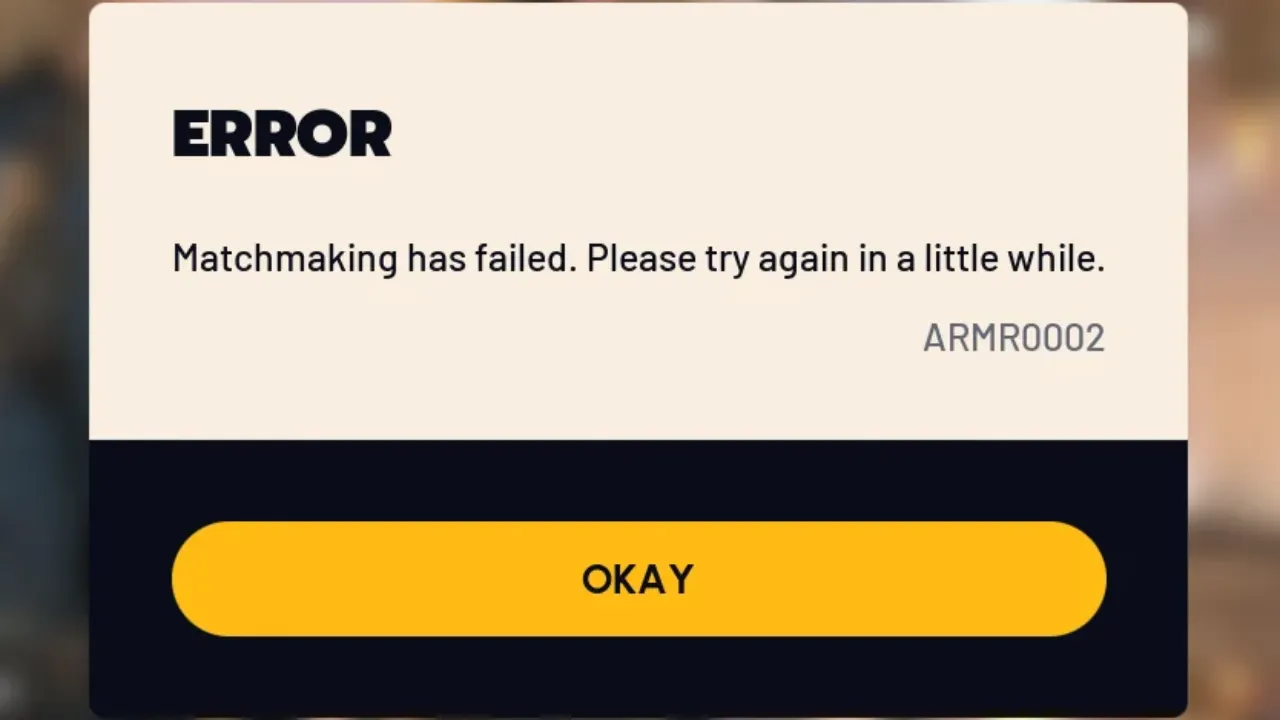
ARMR0002 error code means the game is unable to connect to the matchmaking servers in a valid way. It can be due to either:
- The servers are overloaded or down.
- The current update patch rollout is unstable.
- Your connection is too spotty for the request to complete.
- The client has desynced and needs a reset.
It’s not specific to a platform or region—PC, Xbox, PlayStation players all run into it. Based on how often it’s discussed on Reddit, Steam forums, and Discord, it’s nearly always a server-side choke point instead of a personal network failure.
How to Fix Matchmaking Has Failed in ARC Raiders
Restart ARC Raiders
A proper game restart forces the client to redo its login, rebuild its connection session, and clear any data stuck from a previous match attempt. ARMR0002 error loops endlessly until the game is shut down and restarted from the launcher or console home screen. Quick restarts mostly don’t work, so fully exit the game before you relaunch it.
Power-Cycle Your Router
While the error is usually server-related, a router/modem that you haven’t restarted for a few weeks or months can cause latency spikes or connection failures. Power off the router for 10–15 seconds to clear the network cache, force a fresh routing, and DNS assignments, and then switch it on. Further, a wired connection via Ethernet cable is always better for internet stability. Wi-Fi won’t break matchmaking, but shaky signal strength makes this error far more likely.
Check for the Server Issues
When many players see matchmaking failure at once, it’s likely because the servers are under high traffic load or are undergoing maintenance. If that’s the case, the only fix is patience. You can find out about the server status from the ARC Raiders official Discord, their social media channels, or patch announcements inside the game launcher.
Retry Matchmaking a Few Times
It’s not decent, but the method works more often than it should. When the backend is unstable, the first handshake attempt fails most of the time, while the second, third, or fourth gets a green signal without issue. Players have said that they join the lobby “after spamming Ready” or by selecting Play many times in a row. If the server is flaky but not fully down, persistence can also get you through.
Turn Off Crossplay
When matchmaking is unstable, crossplay can stall the Ready sequence, or people get stuck on the loading screen where they can’t cancel the queue. Disabling crossplay forces the game to match you within your platform pool, which reduces the moving parts ARC has to confirm before it starts a raid.
For Xbox/PlayStation: Restore Licenses or Rebuild the Login Cache
Console players may see different game issues when their license authentication fails. The game treats it like a normal connection error. On PS5, restoring licenses clears that block. On Xbox, you need to sign out and log back into your profile to do the same. These console-side resets get rid of situations when your account is technically online, but the game fails to properly connect with servers.
For PC: Verify Integrity of Game Files
A corrupted file isn’t always the reason for the ARMR0002 error code, but when it does, the error appears before you can even enter matchmaking. If your game crashes, stutters during login, or boots into an endless “Matchmaking…” state, you should verify game files through Steam. To do that, open the Steam Client, go to the Game Library, and enter ARC Raiders properties to see the option to verify the integrity of game files. It also resolves the rare problems where EAC throws a false “unknown file version” warning, which can interrupt matchmaking behind the scenes.
When the Error isn’t on Your Side
Most large ARMR0002 waves happen during new patch deployments, peak weekend prime times, backend rollouts, unexpected outages, and launch surges. During these periods, matchmaking may work one minute and fail the next. Entire squads report being dropped out of the queue, or that only solos can join the raids, while duos/trios instantly encounter the same issue. When this happens, take a short break and recheck Discord—when Embark Studios posts something related to matchmaking failure issues, you’ll know you’re off the hook.
If you have done everything but are still facing the ‘matchmaking has failed’ error, it’s time to contact ARC Raiders Support or drop your issue into the official Discord bug-report channel. It helps the developer team confirm whether the problem is only on your end or a global server failure. Many patches have been released since launch, specifically because enough players reported the same error, and if there’s an ongoing issue, the developers will soon release a new patch with the fixes.