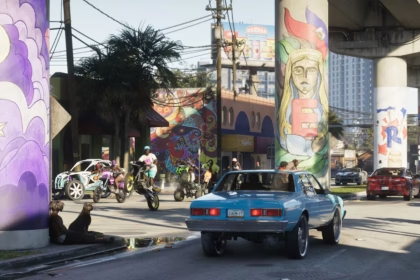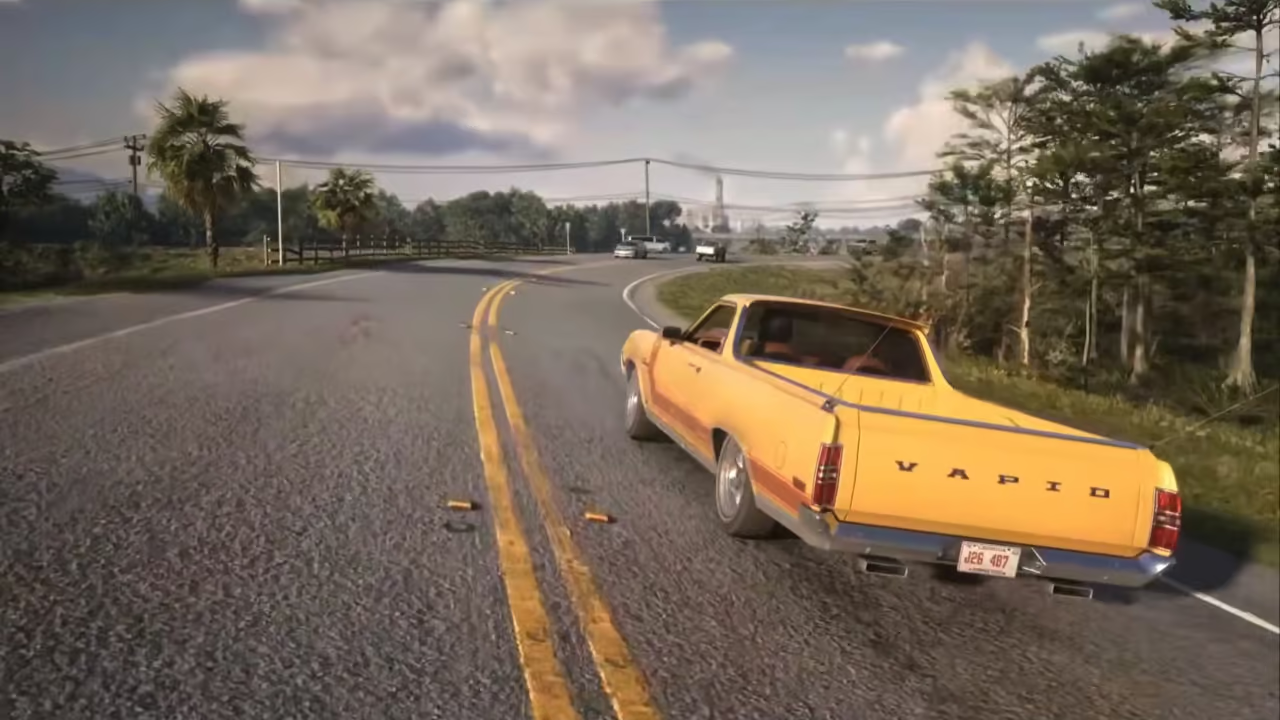
Grand Theft Auto VI offers an Auto Drive feature inside its cinematic camera menu that lets Jason and Lucia take the wheel while you sit back and watch Leonida roll by. Turning it on takes a quick button combo, but you should know a few settings and road rules to save yourself the trouble of getting stuck at intersections or hammered in traffic. This guide tells you everything you need to know about Auto Drive in GTA 6, including how to enable it and how it works.
How to Turn On Auto Drive in GTA 6
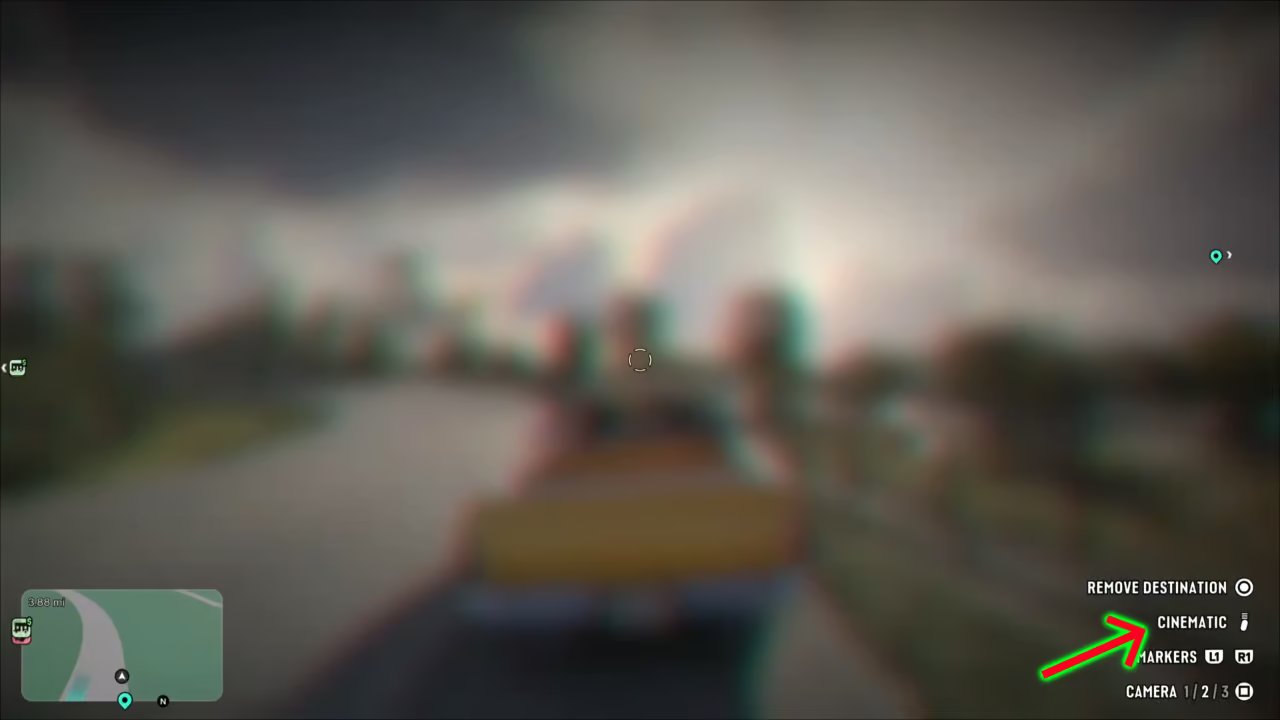
To enable Auto Drive in Grand Theft Auto 6, get into any car, boat, or aircraft and drop a waypoint on your map to guide your character toward a specific location, though you can leave the map without a destination marked, which will let you cruise freely instead. Once driving a vehicle on a clear road, follow these steps:
- Hold down on the D-Pad to open the camera menu in the bottom right.
- Keep holding it down, then press Options on PS5 or Menu on Xbox to enter Cinematic mode.
- To use Auto Drive, hold Circle on PS5 or B on Xbox when the Enable Auto Drive prompt appears.
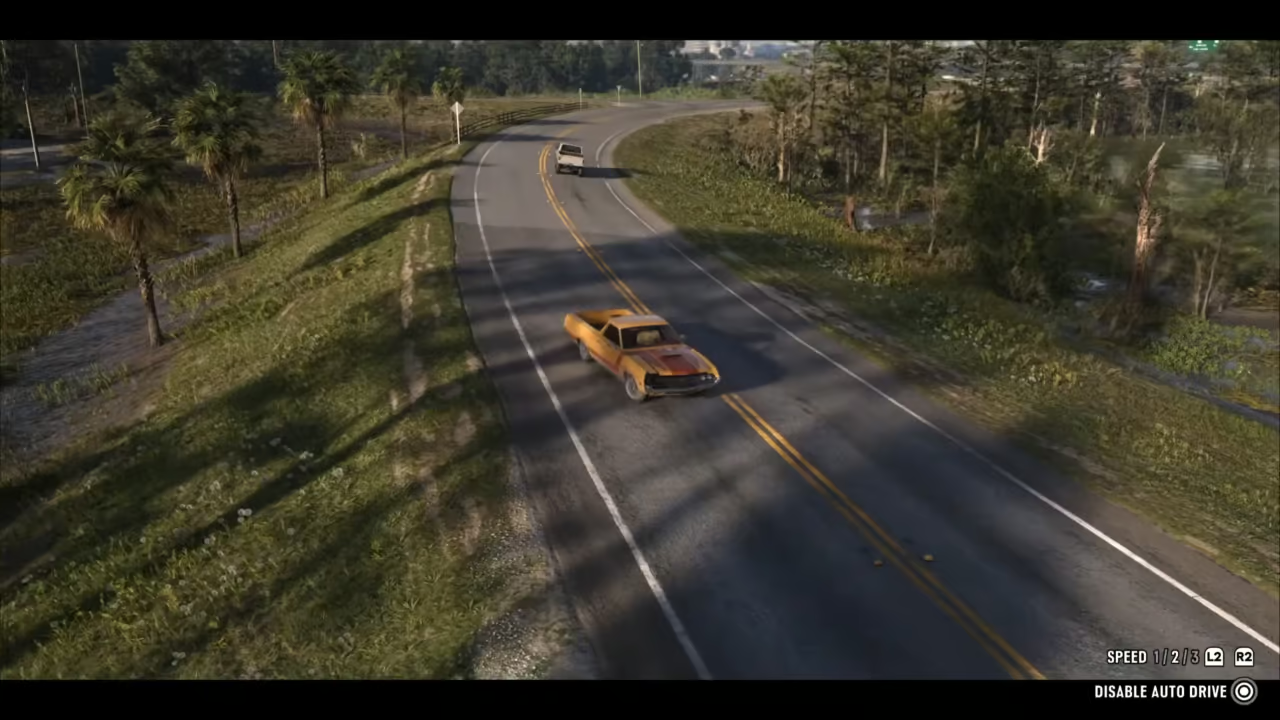
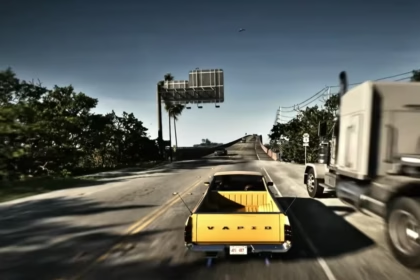
Once active, your protagonist will take over steering while the camera cycles through dynamic angles. Press L2 or R2 on PS5 (LT or RT on Xbox) to toggle between Speed 1, 2, and 3, tilt the Right Stick to pan around the car, or click R3 / RS to jump to a new camera view. Radio stations remain active throughout this Auto Drive trip, and moving your map waypoint automatically reroutes the drive. To retake manual control at any point, hold Circle / B to disable Auto Drive or hold Down on the D-Pad to exit Cinematic mode altogether.
By default, the game only lets you use Auto Drive during calm or safe driving conditions. However, you can change this in the settings. Head to the pause menu, open Settings, go to the Gameplay tab, then scroll down to Accessibility, and switch Auto Drive to Unrestricted.
Turning on unrestricted mode lets you use the feature during chases or off-road driving. But handing control to the AI during high-speed escapes is a rough gamble because auto steering avoids sharp turns, can’t outrun pursuers, and may scrape nearby bumpers when rushing out of tight spaces.
What to Do If Auto Drive is Greyed Out
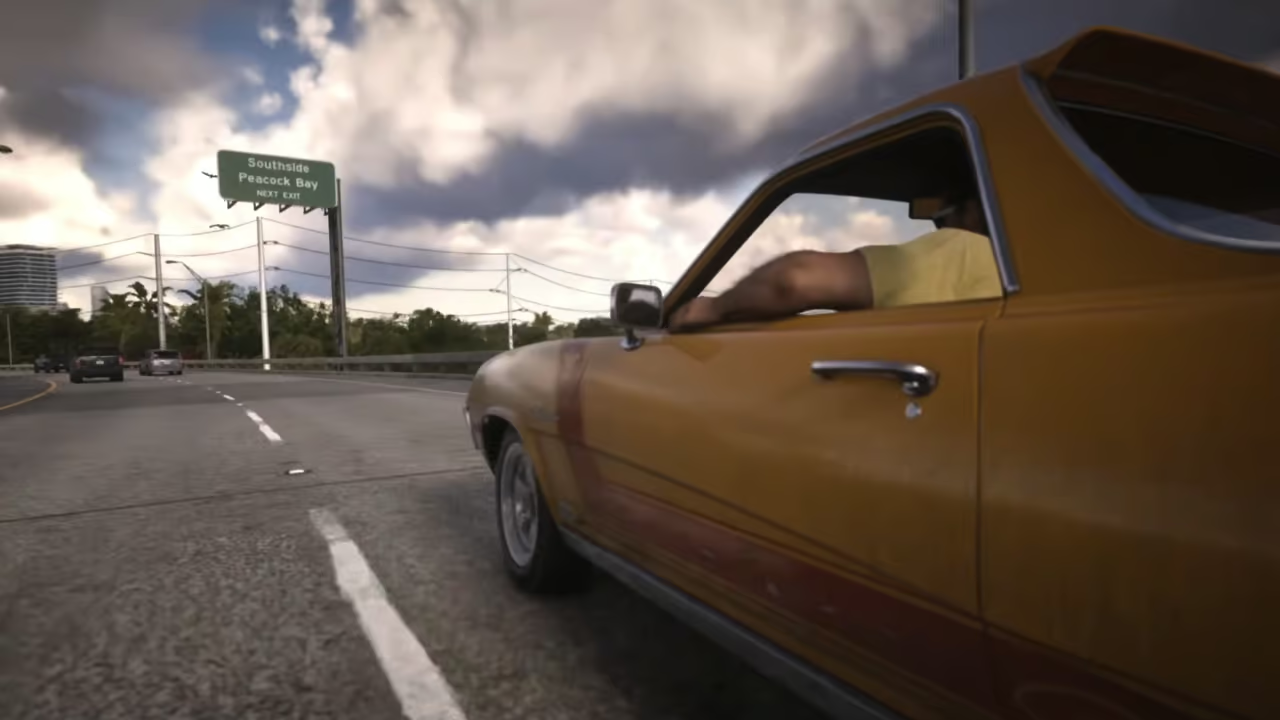
A greyed-out Auto Drive prompt means your car is off a public road or something blocks your path forward. The feature only works when your vehicle is in a proper lane with open road ahead, so get out of sidewalks, narrow alleys, or sideways intersection stops until you face forward in a traffic lane.
Auto Drive isn’t a fast travel shortcut, either. Jason and Lucia obey traffic lights, stop signs, and speed limits, so cross-map trips take longer than driving yourself and can stall behind traffic jams or road accidents. This drive system works on boats and jet skis across lakes and open water too, though setting a waypoint on land makes your character stop at the shoreline and return control to you.