
Support GamesRecon and add us as your preferred source on Google.
Add SourceIf you’ve faced black screens on the pre-rendered cutscenes in Dynasty Warriors: Origins with only audio or subtitles on PC, you’re not alone. This issue is commonly faced by many players and can usually be fixed with a few simple methods.
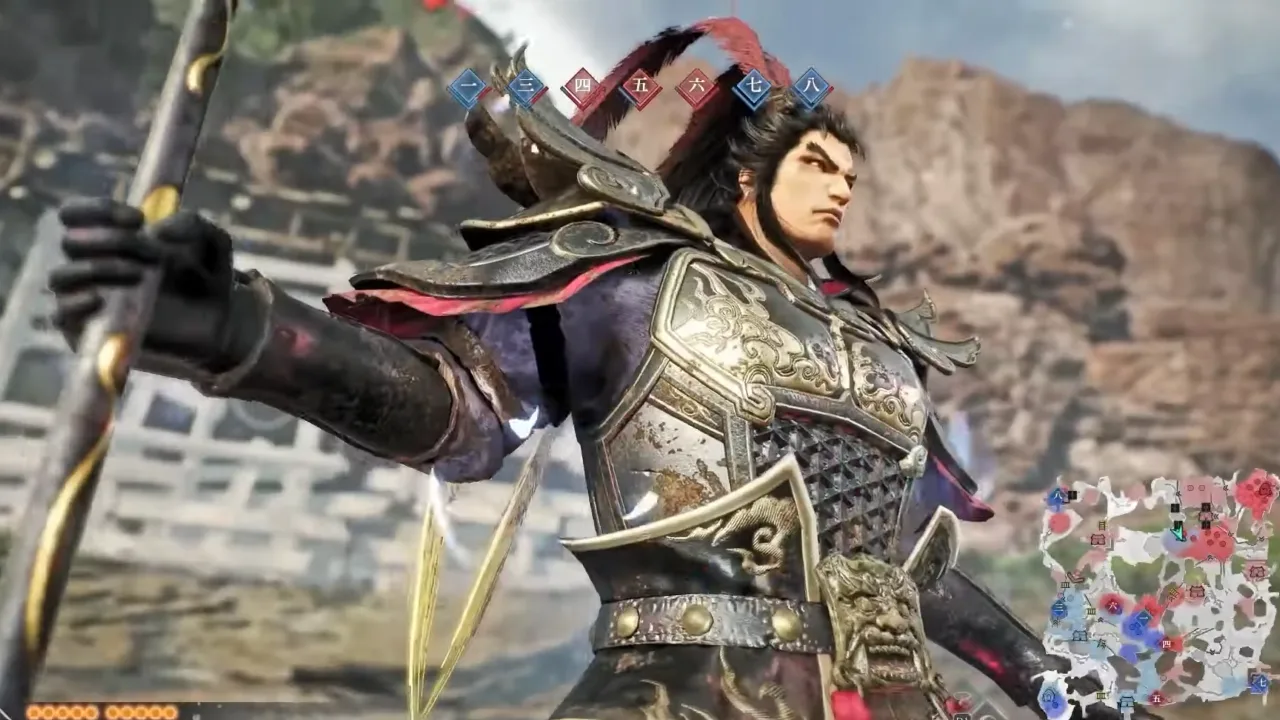
Dynasty Warriors: Origins has been one of the most successful releases in 2025 so far and has received a lot of love on both PC and consoles. The game is launched with fantastic graphics and a great overall performance, with no major issues that we have seen in a few releases last year. KOEI TECMO has done a good job to deliver a masterpiece, but minor issues are to be expected. So, if you have encountered a pre-rendered cutscene bug in DW: Origins, here’s how you can fix it.
How to Fix the No Cutscenes Issue in Dynasty Warriors Origins
The pre-rendered cutscenes in Dynasty Warriors: Origins, which appear throughout parts of the game for missions, rely on specific video codecs, like VP9, to play properly. If your PC doesn’t have the necessary codecs or settings configured in Windows, the videos will not load in-game. In some cases, the problem can also be due to display scaling, outdated drivers, or missing software updates.
Install the VP9 Video Extensions
The most likely cause is that your system is missing the VP9 codec. If that’s the case, here’s how to fix it:
- Go to the Microsoft Store.
- Search for VP9 Video Extensions. Download and install it.
This codec is important because Origins uses VP9 to render its cutscenes, and installing this should allow the videos to play as intended.
Set Your Desktop Scale to 100%
Other than fixing the VP9 problem, you need to adjust your desktop scaling settings:
- Right-click on your desktop and select Display settings.
- Scroll down to the Scale and layout section and set the scale to 100%.
Some players have reported that improper scaling can interfere with how the game renders these specific pre-rendered cutscenes. KOEI TECMO has also given its instructions regarding this matter.
Play Cutscene Files Outside the Game
If none of the above works, you must check if the cutscene files are the reason:
- Go to your game folder (Steam > Right-click the game > Manage > Browse Local Files).
- Head to the
File/MOVIEfolder. - Play the video files directly in a media player.
If the videos play fine outside the game, the issue might be specific to your system’s processing of the game.
Update Key Software and Drivers
It’s always important to keep your system up to date, whether it’s Windows, installed software, or other drivers. This is what you should check:
- Install any pending Windows Updates on your PC.
- DirectX and Visual C++ Redistributables are required for many PC games to run properly.
- Download the latest drivers for your GPU from NVIDIA, AMD, or Intel, depending on your card manufacturer.
Fixing the Dynasty Warriors: Origins no cutscenes issue on PC is simple once you know what’s triggering it. So, enjoy the game and the amazing cutscenes because what is this game without its over the top cinematic moments? Happy gaming!
Follow GamesRecon on Google News for the latest gaming updates.
Follow on Google News