

The “An unhandled exception occurred” crash in Resident Evil Requiem is one of the most widespread issues PC players have faced since the game’s launch. It appears as a pop-up with re9.exe memory addresses that either won’t let you open the game or kill your session mid-playthrough. Many things can be behind the problem, so not every fix works for everyone. Here are all the easy and quick solutions the community has found so far to fix the Resident Evil Requiem “an unhandled exception occurred” crash issue.
- What Causes an Unhandled Exception Crash in Resident Evil Requiem
- Fix 1: Install REFramework Mod
- Fix 2: Rename or Remove dxgi.dll
- Fix 3: Disable All Overlays
- Fix 4: Modify config.ini Settings
- Fix 5: Fix Windows Controlled Folder Access
- Fix 6: Reinstall the Game to a Different Drive
- Fix 7: Update GPU Drivers
- Fix 8: Verify Game Files and Delete Specific DLLs
- Fix 9: Reduce Graphics Settings and Disable Ray Tracing
- Fix 10: Reinstall Steam and Visual C++ Redistributables
What Causes an Unhandled Exception Crash in Resident Evil Requiem
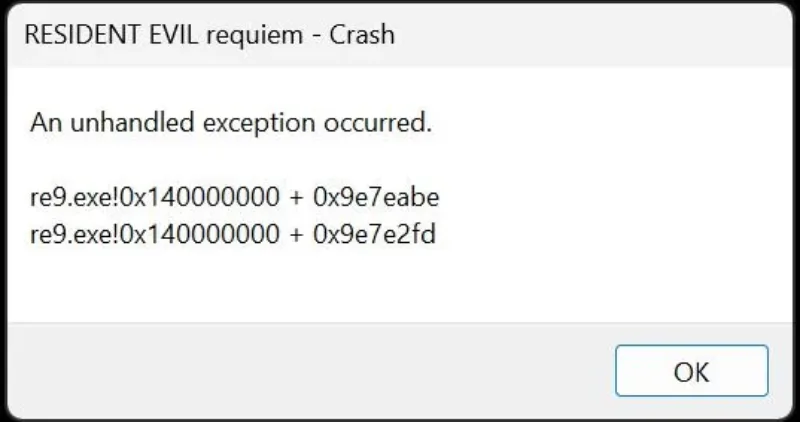
The crash can happen due to different culprits: background overlays interfere with the game process, Windows Controlled Folder Access blocks the executable, Denuvo DRM conflicts with certain DLL files, incorrect graphics/upscaling settings in config.ini, corrupted game files, outdated GPU drivers, and overloaded VRAM from heavy graphics presets.
The error shows at launch, during cutscenes, on save file loads, or randomly during gameplay, and for some players, it gets progressively worse the further into the game they go. Don’t worry, these are the fixes you can try to get rid of this annoyance for good and return to the zombie slaying mission.


Fix 1: Install REFramework Mod
Currently, this method is the most effective fix because it often works. Download the REFramework mod from Nexusmods (search “REFramework Resident Evil Requiem” on nexusmods.com), extract the file, and drop it into the RE Requiem root game folder, same location as the re9.exe file. Launch the game. A small REFramework window will appear; minimize it and move it to a corner. Don’t touch any settings inside it.
Many players have reported no crashes after using this mod. It bypasses certain engine checks and allows the game to stabilize its runtime environment. Even if you don’t use any of the mod’s features, just having it in the folder prevents the exception error for many. But, REFramework is only a workaround until Capcom fixes the underlying issue. After game updates, the mod’s dinput8.dll might also need to be updated to work again.
Fix 2: Rename or Remove dxgi.dll
Denuvo DRM seems to flag the dxgi.dll file in the game directory and lead to a hang or crash on startup. Open the RE Requiem installation folder, find dxgi.dll, and rename it to dxgi.dll.bak. This can resolve startup crashes on Linux and Windows, including Steam Deck.
Fix 3: Disable All Overlays
Active overlays in the background are a confirmed trigger for this crash. Disable all of the following before you launch the game, because closing all overlays at once can also fix the problem.
- Steam Overlay (Steam Settings → In-Game → uncheck Enable Steam Overlay)
- Discord Overlay (Discord User Settings → Game Overlay → toggle off)
- NVIDIA ShadowPlay / GeForce Experience overlay
- Any other overlay tools (Xbox Game Bar, MSI Afterburner, etc.)
Fix 4: Modify config.ini Settings
Open the config.ini file inside the game’s installation folder and change the following lines:
UpscalingQuality_DLSS=Auto→UpscalingQuality_DLSS=BalanceUpscalingQuality_FSR1=UltraQuality→UpscalingQuality_FSR1=BalanceCapability=DirectX12→Capability=DirectX11
Save the file and relaunch. The game sometimes resets config.ini to the default after you close it, so you might need to reapply these changes every session. Keep a backup copy of the edited config.ini to make it quick. Alternatively, add -force-dx11 to Steam launch options. Right-click Resident Evil Requiem in the Steam client, go to Properties, then General, and select Launch Options to force DirectX 11 without manually editing the file every time.
Fix 5: Fix Windows Controlled Folder Access
Windows Security’s Controlled Folder Access feature can block the game from reading its own files, even when real-time protection for antivirus software is disabled. To fix this:
- Open Windows Security and head to Virus & Threat Protection.
- You’ll find Ransomware Protection there. Click it.
- Next, open Controlled Folder Access and choose Allow an app through Controlled Folder Access.
- Add the re9.exe game file to the list.
Fix 6: Reinstall the Game to a Different Drive
A handful of players tried everything else before finding success with one last move: completely uninstall the game and save it on a different drive. Move from an old HDD to an SSD or switch between different drives. Once you’ve reinstalled, verify game file integrity through Steam before you fire up the game.
Fix 7: Update GPU Drivers
Outdated GPU drivers result in crashes more often than you’d think. People update them once when they buy the card and then forget about them. Visit the NVIDIA or AMD website and download the latest version of GPU drivers. Don’t trust Windows Update or any automatic tool to handle this.
Use Display Driver Uninstaller to strip out everything, including the leftover files that pile up when you install driver over driver. Just updating on top of the existing installation leaves garbage that creates weird stability problems down the road. Run DDU in safe mode, let it do its thing, then install fresh drivers from scratch.
Fix 8: Verify Game Files and Delete Specific DLLs
Open Steam and right click RE Requiem. Go to Properties, then Installed Files, and click Verify integrity of game files. This will repair all corrupted or missing game files. Moreover, some players have fixed the error by deleting hid.dll from the Steam folder. The file can conflict with the game’s runtime environment at launch.
Fix 9: Reduce Graphics Settings and Disable Ray Tracing
Ray tracing and the ultra-high texture settings often cause such crashes, particularly when VRAM is pushed to its limit. Dropping texture quality, turning off ray tracing, disabling frame generation, and switching to windowed mode can fix things, even for gamers with top-tier cards like the RTX 4090. Also, turn off HDR and VRR on your TV or display splitter. HDMI splitters create problems like instability and graphic glitches, so it’s best to avoid them.
Fix 10: Reinstall Steam and Visual C++ Redistributables
If you’re still facing the issue, do a complete Steam reinstall. When you uninstall, delete any leftover files manually first. Further, download the latest Visual C++ Redistributable packages from Microsoft’s website. Missing or outdated runtime components cause unhandled exception crashes on the RE Engine.